Resolve rejected payments in minutes
If your payment was rejected, mismatched, or your order didn't appear, follow the matching solution below.
Payment successful but order not displayed
- Go to Transactions
- Find the unpaid order
- Click the Eye (View) button
- Click Supplement
- Enter: Identifier or Transaction Number, Receiver Cashtag, Sender Name, Amount
- Click Confirm
Result: Platform will audit and update the order.
When Customer Send Amount More Than Request In Portal By Agents
- Go to Transactions
- Find the unpaid order
- Click the Eye (View) button
- Click Supplement
- Enter: Identifier or Transaction Number, Receiver Cashtag, Sender Name, Amount
- Click Confirm
Result: Platform will audit and adjust.
When the customer pays on old tag without asking through Cash App account saved in history
- Create a new order (Do NOT send link to player)
- Open the order
- Click the Eye (View) button
- Click Supplement
- Enter: Identifier or Transaction Number, Receiver Cashtag, Sender Name, Amount
- Click Confirm
Result: Platform will verify and process.
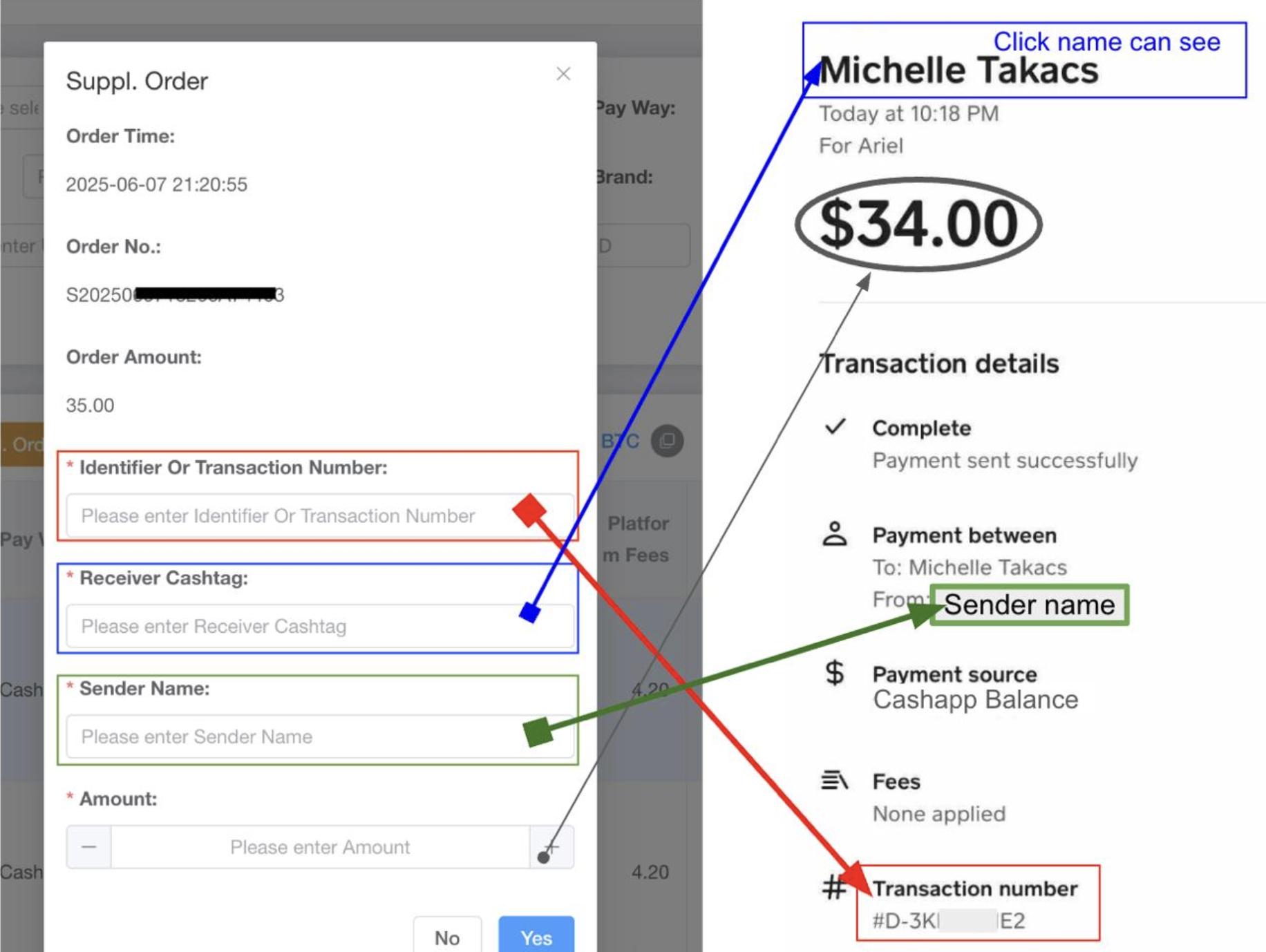
This section helps users locate the correct payment details required for the Supplement process.
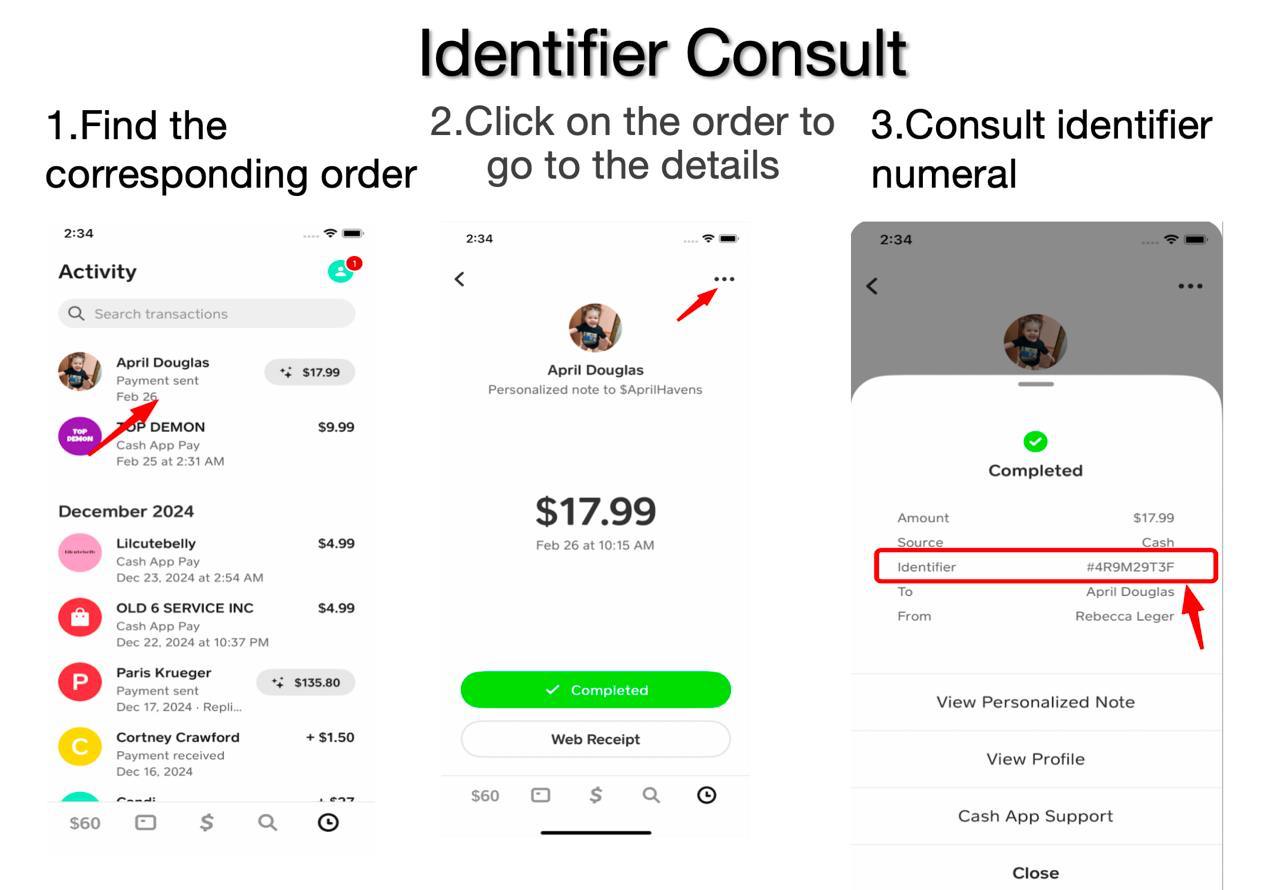
Identifier Location Guide
Transaction Number Location Guide
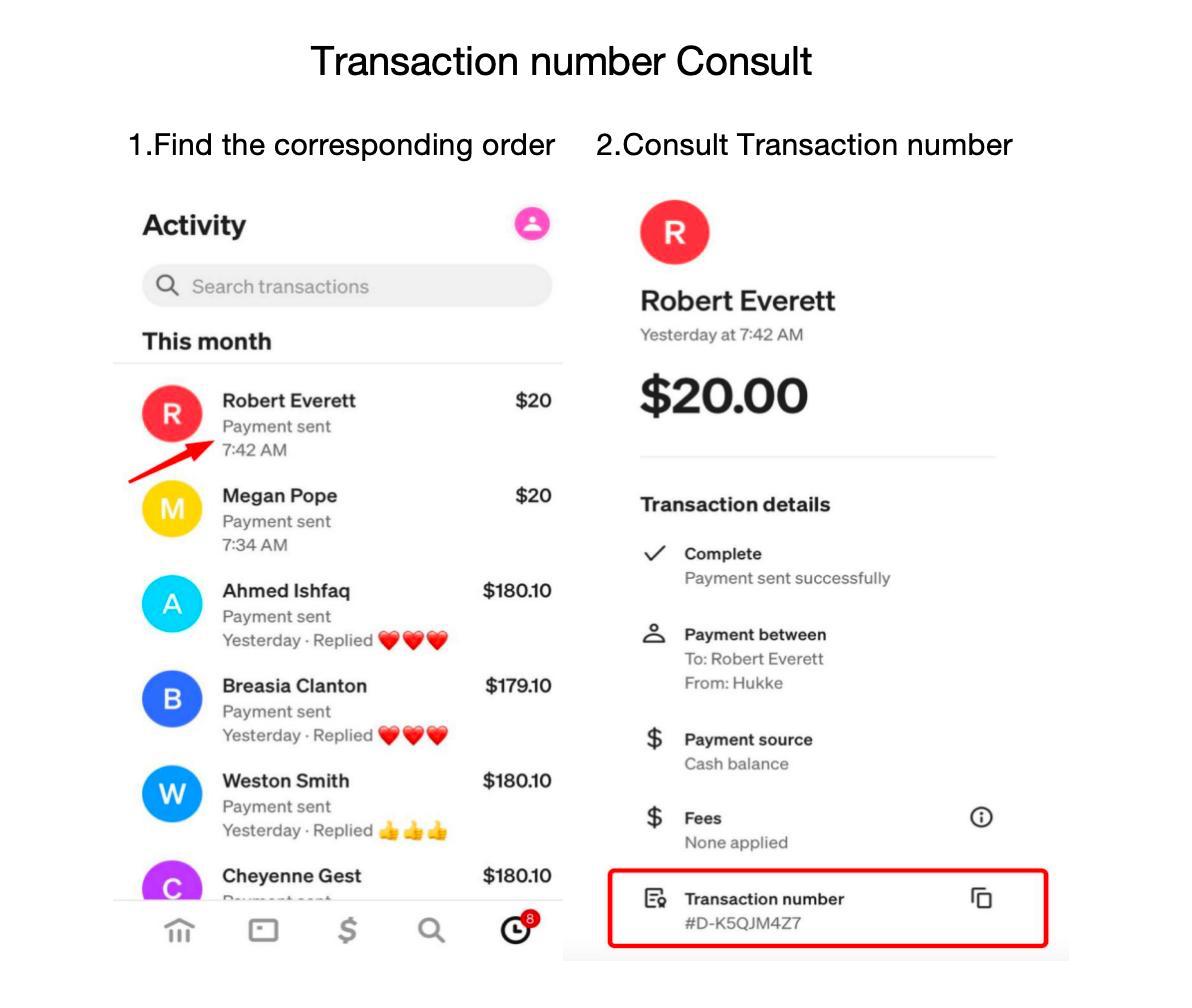
Note: Transaction Number is known as Identifier for iOS users. Transaction Number remains the same for Android.
Always upload clear proof
A full screenshot of the completed payment beats a cropped or blurry one every time.
Use the correct sender tag
Match the tag exactly. Typos are the #1 cause of mismatches.
Submit within the window
Confirm before the countdown ends — expired payments require a Supplement request.
PayPal: Friends & Family only
Goods & Services trigger fees and can result in deductions from your balance.